Complete your business profile
The setup wizard already captured the basics. Before clients see your site, take a few minutes to make sure your brand looks right and your business details are accurate.
Open Settings → Brand in the side menu. Related items are grouped into tabs along the top. Tap Save at the bottom when you finish each tab.
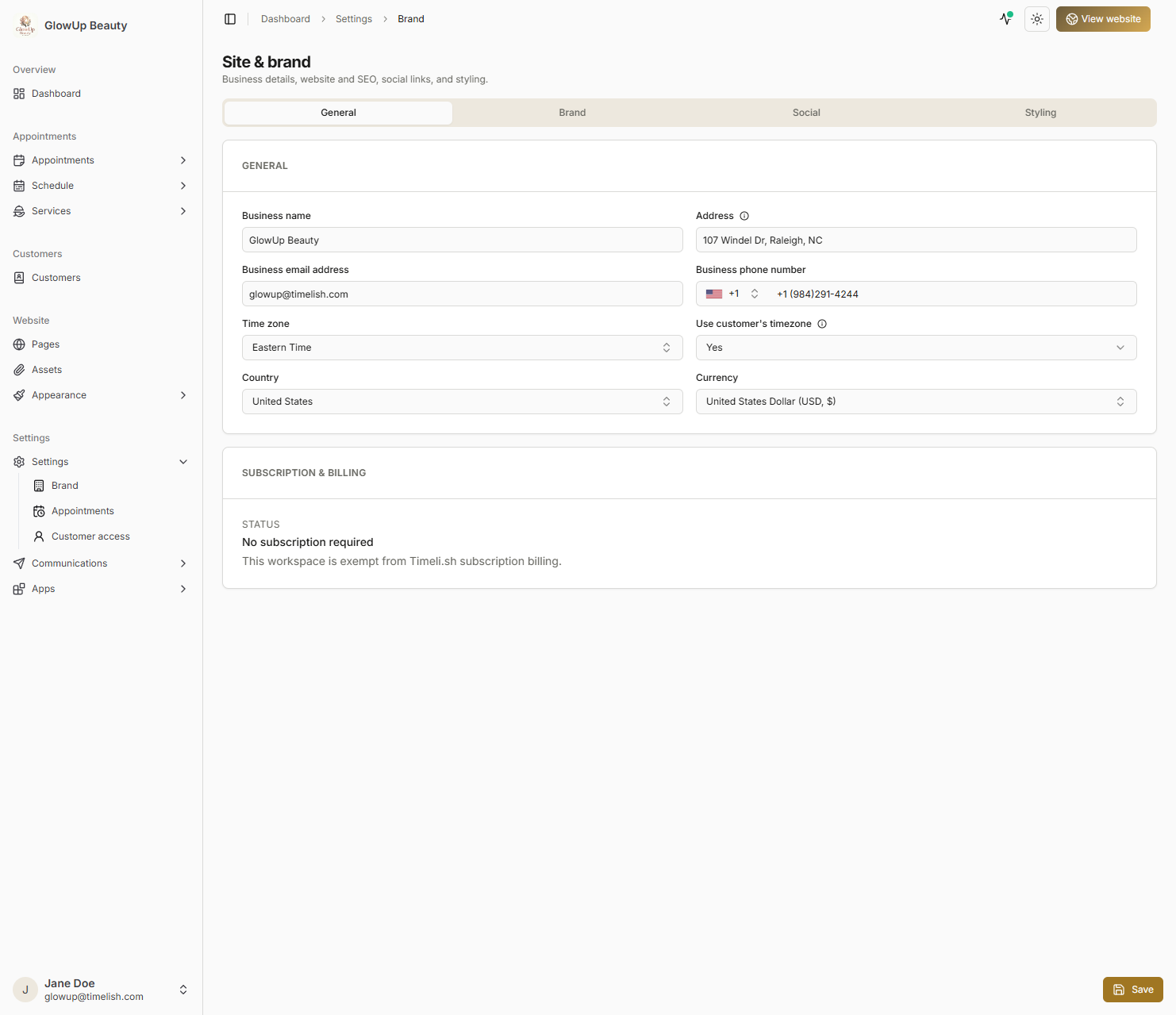
General tab
Use General for information that should stay consistent on paperwork and inside your dashboard:
- Business name - how clients recognise you on emails and your site.
- Address - optional physical location.
- Time zone - anchors appointment times and reminders to your local clock.
- Use customer's timezone - Select yes, if you mainly provide online services and it's important for your customers to operate with times in their own timezone. If your provide in-person services, selecting No will allow customers to see all the times in your location's timezone by default. It's useful for customers who are currently traveling to not confuse their appointment time.
- Country and currency - shape how prices display at checkout.
If any of these were wrong in the wizard, fix them here first.
Brand tab
Use Brand for what visitors see on your booking website:
- Site title - the name shown on your public pages.
- Logo and favicon - the small icon in browser tabs; a logo builds trust even if it is simple.
- Language - the default language for your booking site.
- SEO Meta - provide a good description of your business and keywords that greatly describe it for search engines (Google) to show your website higher in the search results. Keep them short but on target.
- Booking website address - your live link (for example
https://yourname.timeli.sh) with a copy button. - Custom domain - optional; see Connect your own web address when you own a domain name.
Social tab
Add links to profiles you want visitors to find - Instagram, Facebook, LinkedIn, and similar. These can appear on your public pages depending on how your site is laid out.
Styling tab
Fine-tune colours and fonts beyond what you picked during setup. Small tweaks here make the booking experience feel like your business, not a generic template.
You will use the colors and fonts during building your website pages in order to match your style across all pages.
Quick check before you move on
- Business name and site title read correctly.
- Logo uploaded (recommended).
- Time zone matches where you work.
- Booking link copied once so you know where to find it later.
Next steps
- Set up your services
- Change settings - fuller reference for all settings areas